You download a movie from torrent,
direct download or whatever P2P software but at the end you found out that
there is no suitable subtitle for that movie. The entire subtitle you found
from the net doesn’t has perfect synchronization with the movie as you hope
for. In the other word, the timing between audio (actor/actress voice) and
subtitle doesn’t matching.
And now you start to wonder (I was)
if you could re-synchronize the ‘not so match’ subtitle to with this
video/movie (voice)?
The answer: Yes you can and it
doesn’t require even a single cent.
Requirement:
- Download Subtitle Workshop from www.urusoft.net: Download page here.
- Subtitle Workshop is a freeware.
- Your movie and it’s ‘not so match’ subtitle (example extension .srt)
Step:1
Install Subtitle Workshop (current
version as I type this mini tutorial is 2.51).
Launch your Subtitle Workshop 2.51
Load your movie into Subtitle
Workshop by : Click on Movie à Open
(from the its menubar)
Load your “not so match” subtitle
into Subtitle Workshop by : File à Load
Subtitle (from its menubar)
Note
: Alternatively, you can drag and drop your movie and ‘not so match’ subtitle
into Subtitle Workshop.
You should have this kind of screen
(more of less, if you use Dragon war movie and nedivx dwar.srt subtitle).

Now, what you need to do is to know when is the exact time for the first voice will be heard.
So, play the movie (using Subtitle workshop) by pressing play button and listen carefully. Be ready to hit pause button when you start to hear voice related to subtitle wording below. If you miss the exact time, you can either estimate how much fraction of second you need to deduct or simply redo.
As for my case, I notice that the first voice saying “Everyone believes the time….” start at 8.803 sec.

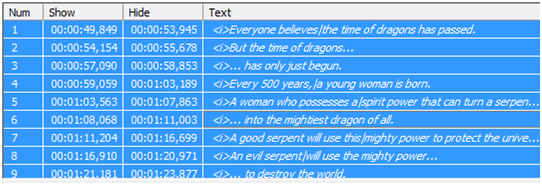
Note that, in my ‘not so correct’ subtitle, the first phrase is at 49.849 seconds which is almost 41 seconds later than what it should be. Indirectly, you should catch up by now, what you should do is, make all phrases (timing) in this subtitle start (49.849-8.803 = 41.046) 41.046 seconds sooner.
In order to do that,
- Make sure your sliding indicator at the correct time
-
Click on any subtitle phrase and press CTRL+A (or click Edit à Select All)


Result : All phrase in my subtitle now, move 41 second earlier which is the correct timing for this movie.
Comparison

Verify
To verify that your new subtitle perfectly match with your movie audio (subtitle) simply click on Play button. Subtitle Workshop will play the movie and display your newly edited subtitle. If you satisfy with the result, save it by : File à Save (or Save As).
Enjoy


